Hamset Bose headset on Mac/PC
The Hamset Bose QC25 headset is my favourite professional contest headset, replacing my legacy 1993 Heil Sound Pro Set with HC-4 microphone element.
Are you trying to connect a radio headset from Hamset.com to your PC or Mac, but running into microphone issues?
Would you like to use the Hamset Bose QC25 headset not only when contesting but also when doing meetings or conference calls or remote operations?
In this short article, we explain why a direct connection (and standard splitter cables) won’t work and how to solve it easily and professionally.
(Note: this page contains affiliate links)
The Problem
Connecting a Hamset microphone directly to a PC usually presents two main obstacles:
Incompatible Wiring & Pinout: The pinout of Hamset microphones does not match standard consumer TRRS/TRS PC audio ports and/or the computer audio port is not able to correctly detect the type of microphone.
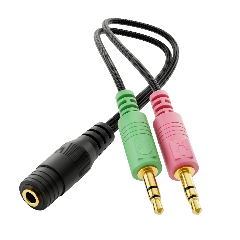
Why doesn’t a TRRS to 2x TRS splitter work? Standard splitter cables fail because the internal wiring and grounding structure of the Hamset microphone differ from consumer headsets. The signal simply does not reach the correct pins.
Weak Signal Output: The microphone elements in these headsets have a very low output level and require an active preamp to boost the audio to a usable line level. Plugs directly into a PC sound card result in extremely quiet or unrecordable audio.
The splitter cable solution (TRS/TRS to TRRS) will not work due to the complex RTTS microphone detection:
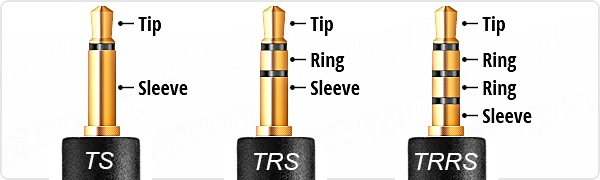
More detailed information about the difference between TRS - TRRS can be found on this website.
The Solution
To resolve both issues, you need two hardware components:
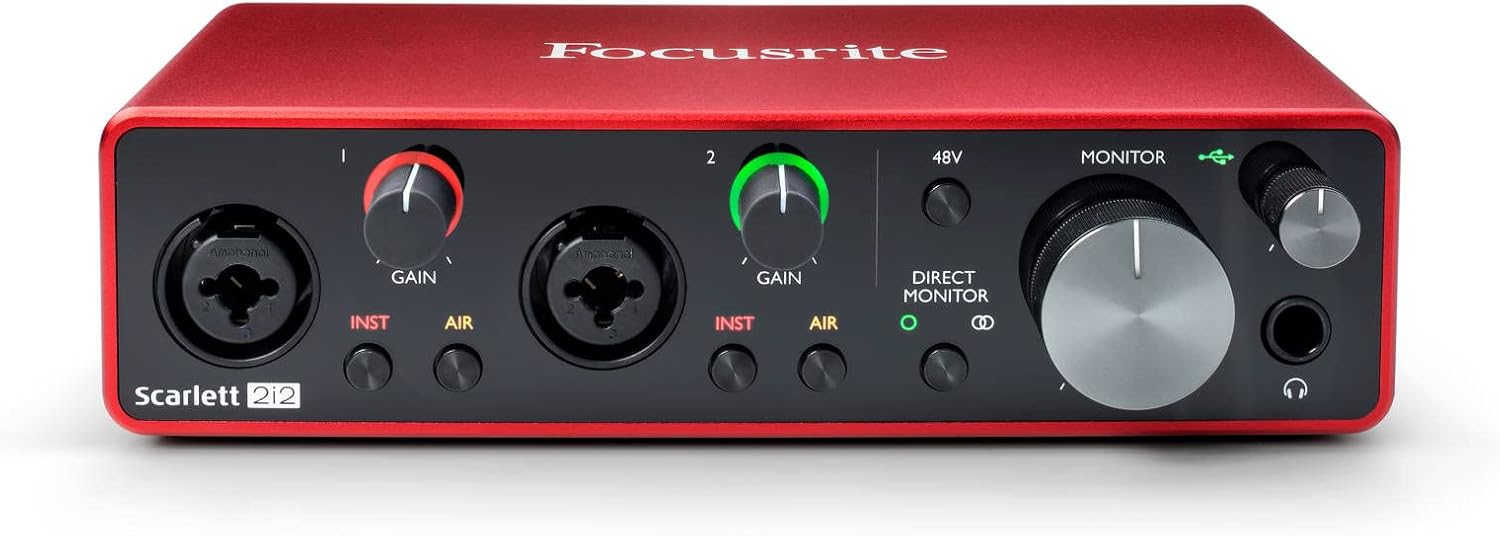
- Focusrite Scarlett 2i2 (or a similar audio interface / microphone preamp) (View on Amazon).
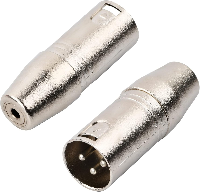
- Naseom XLR (3-pin) to 3.5mm Mono Jack (View on Amazon).
Focusrite Scarlett 2i2 audio interface
Audio interface with at least one unbalanced microphone input and optionally an audio headset output.
Other options are:
- Focusrite Scarlett Solo (View on Amazon)
- Behringer UMC22 (View on Amazon) (not tested)
- Behringer UMC202HD (View on Amazon) (not tested)
XLR to 3.5mm mono jack
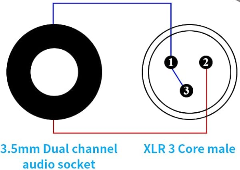
Converts the microphone 3.5mm jack to an unbalanced microphone (XLR).
Why This Setup Works
The key to making this work lies in two specific technical details:
- XLR Connector Required for Microphone Preamp: Although the Focusrite Scarlett features combo inputs (XLR & 6.3mm jack), its internal microphone preamp is only engaged when an XLR plug is inserted. Inserting a 6.3mm jack forces the interface into instrument/line mode, bypassing the gain needed for the Hamset microphone.
- Pin Bridging in the Naseom Cable: Inside the XLR connector of this specific cable, Pin 1 (Ground) and Pin 3 (Cold / Negative) are wired together. Bridging Pin 1 and Pin 3 converts the balanced input signal into a proper unbalanced mono signal fed into Pin 2 (Hot).
Connection Diagram
    graph TD
    subgraph Headset["Hamset Headset"]
        MicJack["Mic Jack<br/>(3.5mm Mono)"]
        HPJack["Headphone Jack<br/>(3.5mm Stereo)"]
    end

    XLRAdapter["Naseom Adapter Cable<br/>(3.5mm TS to XLR Pin 2)"]
    HPApter["3.5mm to 6.35mm<br/>Jack Adapter"]

    subgraph Interface["Focusrite Scarlett 2i2"]
        MicInput["Front XLR Input<br/>(Mic Preamp Enabled)"]
        HPOutput["Headphone Out (6.35mm)"]
    end

    PC["PC / Laptop"]

    %% Connections
    MicJack -->|3.5mm Mono TS| XLRAdapter
    XLRAdapter -->|XLR Male| MicInput

    HPJack -->|3.5mm Stereo TRS| HPApter
    HPApter -->|6.35mm Stereo TRS| HPOutput

    Interface <===>|USB Cable| PC
Setup Steps
- Microphone Setup: Plug the 3.5mm microphone connector from your Hamset headset into the female socket of the Naseom XLR plug. Connect the XLR plug into the front microphone input of your Focusrite Scarlett.
- Headphone Setup: Connect the 3.5mm headphone connector from your Hamset headset (using a 3.5mm to 6.3mm TRS adapter if needed) directly to the Headphone Output on the front of the Focusrite Scarlett.
- PC Connection: Connect the Focusrite interface to your PC via USB.
- Levels Adjustment: Set the Scarlett as your primary playback and recording device in Windows, then adjust the Mic Gain knob on the Scarlett until your voice is crisp and clear.